Online tools can be used to create complicated surveys in a snap. However, survey creation is a detail-oriented process; carelessness during the design process can be costly. However, no matter how carefully you plan, mistakes can happen. Consider the scenario where you have meticulously gone through every question and question order. You hit Publish, and send the survey link to thousands of respondents, but then discover a small typo or error in your survey. This is every researcher’s nightmare; luckily, SurveyCrest has a quick fix for this stressful situation. Deactivating a survey is just a piece of cake with our free survey maker.
The feature has been created specifically when those “Uh-Oh!” moments hit unexpectedly. Here is a step-by-step tutorial that walks you through the necessary steps to deactivate a survey:
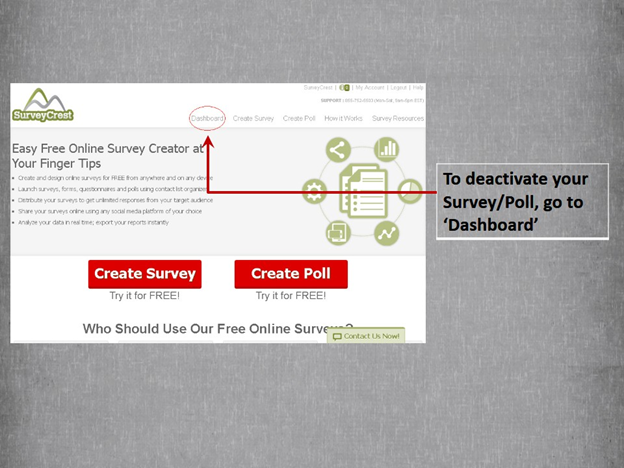
Login to your SurveyCrest account and navigate to the Dashboard. Once you log in you will be directed to the Dashboard option by default. If you can’t find it, go to the SurveyCrest Homepage and click on the ‘Dashboard’ option.
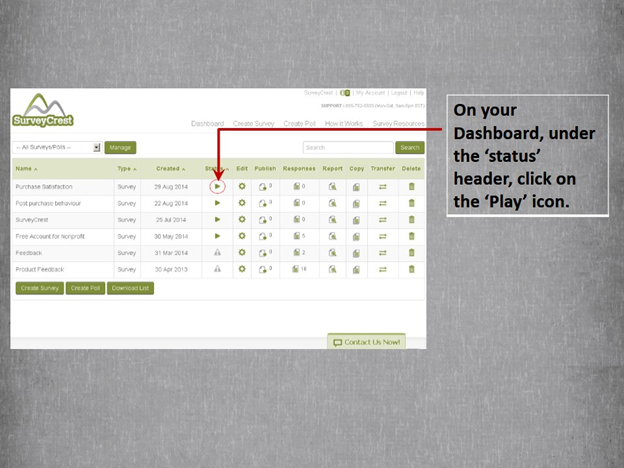
The Dashboard displays a list of all the SurveyCrest tools you have created (other than surveys, this includes polls, forms, quizzes and invoices). This screen is a handy way to keep track of your past and present surveys.
The data displayed includes:
A green ‘Play’ icon indicates active surveys, whereas a red ‘Warning’ symbol denotes deactivated ones. In order to deactivate a survey that is currently active, click on the ‘Play’ icon.
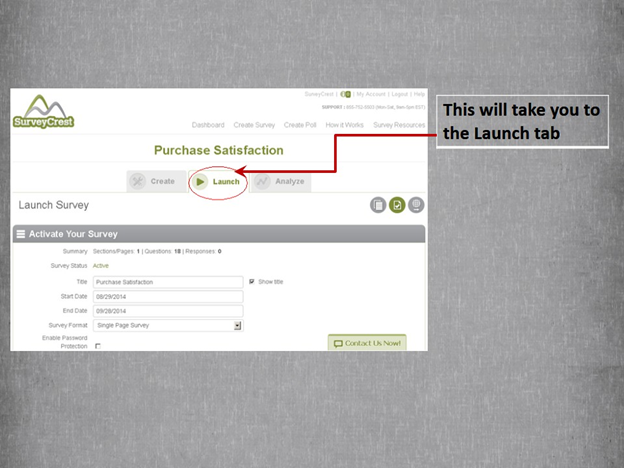
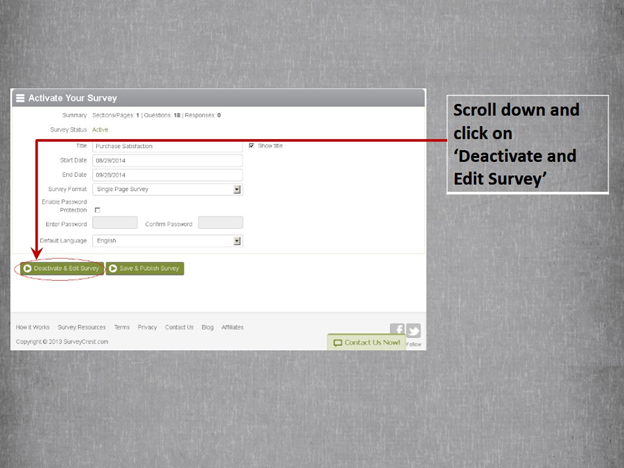
The Launch tab of your selected survey will open. This is the main control panel for the survey which lets you toggle active/inactive status.
Scroll down to the end of the page, locate the ‘Deactivate and Edit Survey’ button, and click on it. The survey will be deactivated and you will be taken to the Edit tab.
Make any changes you need and then click on the ‘Launch Survey’ button to navigate back to the Launch tab.
If you have followed the above steps correctly, your survey should now be deactivated. You can verify the change in survey status on the Dashboard page. Please contact the SurveyCrest support team if you need more help.
The pandemic didn’t just change how we work—it also reshaped economic patterns and workforce expectations. What started as an emergency…
For a long time, real estate decisions were often based on experience, market intuition, and past trends. To inform new…
For years, businesses used 15-20 minute surveys to learn about their customers. The hypothesis was straightforward: the more questions, the…
If you ever wanted to replace the term ‘holiday season,’ it could easily be called the ‘shopping season.’ You can’t…
With burnout becoming a norm in every other company, employers are dealing with an epidemic where employees are suffering mental…
Artificial intelligence is not just a word people can use to look cool in meetings. It has become a business…